Funny jokes that will have you keeled over laughing daily. Come back everyday for a good laugh!
Monday, October 27, 2025
Don’t Run Out of Stock Again…
The cardinal sin of selling on Amazon is.....
Increase Your Sales on Amazon
Set Up Alerts and Avoid Running Out of Stock
Running out of stock when selling on Amazon can be incredibly frustrating, as it can lead to lost sales and difficulty in getting your ranking back.
When your product is out of stock, it's no longer available for purchase, which means that potential customers will likely buy from your competitors when they would have bought from you.
When you are balancing so many things in your business, many sellers don't realize they are running out of stock until it is too late. This can be a major setback for sellers and hard to recover from.
The good news… There is a simple solution that will only take a minute or two (and can save you from running out of stock).
Inventory Quantity Alerts, or Replenishment Alerts, on Seller Central are a great way to monitor your FBA inventory to make sure you do not run out of stock. Follow our steps below to learn how to set up inventory alerts on your FBA items.
Log into Seller Central
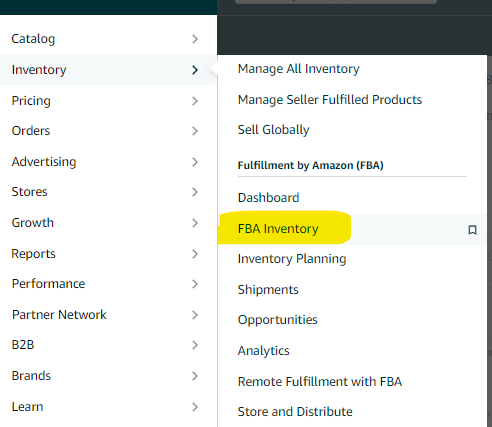
Hover over the Inventory menu tab and select Inventory > FBA Inventory on Amazon Seller Central
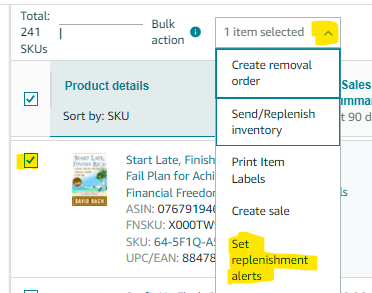
3. Select the checkbox for the listings that you want to set up replenishment alerts for
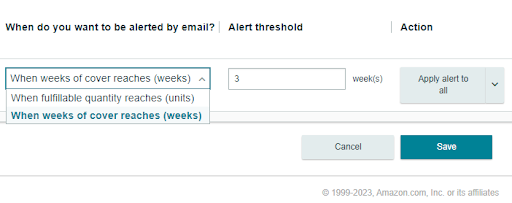
4. On Set Inventory Replenishment Alerts page you will select when do you want to be alerted with two options: When fulfillable quantity reaches (Units) or When Weeks-of-Cover reaches (Weeks)
What it means
When fulfillable quantity reaches (Units): Use this if you want to be notified whenever your quantity reaches that number.
When Weeks-of Cover reaches (Weeks): Use this if you want to be notified when you want to take into account of how many weeks it would take for the product to reach Amazon's fulfillment center.
Click Save and you are set!
Tips:
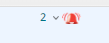
The gold bell will indicate that alerts are set up for that listing but the alert threshold has not been reached.
The red bell indicates when your alert threshold for that product has been reached.
Ex. In this case, we've set up our alert threshold to notify us when it hits 15 and below. The red bell in the image is showing that this product has passed the 15 we've set.







No comments:
Post a Comment